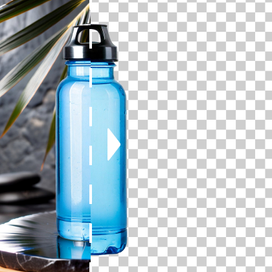
Product photography just changed: Meet AI Photoshoot🎉

AI generative fill for product photos

Edit product photos with prompt instructions. Add objects, replace elements, or make other changes while keeping your product sharp and accurate.
AI generative fill showing product photo editing with prompt instructions

High-quality outputs with strong product preservation

You can generate multiple prompt-based versions for hooks, seasonal angles, and placements in minutes. You control the direction with the prompt, while Claid keeps the output clean and realistic.

High-quality AI generative fill output showing product with added elements

Adding objects to product photos

Need a pedestal or seasonal prop? You can add objects to a photo with AI: describe your vision in the prompt, and Claid will insert the described object into the scene while keeping lighting and perspective consistent.

Adding objects to product photos - serum bottle with AI-generated petals

Swapping elements without reshooting

With generative AI fill, you can swap props, surfaces, or background styles for different channels and campaigns: "replace the table with white marble," "replace the plant with a neutral prop," "change the background to a soft studio gradient."

Swapping elements without reshooting - fashion model with different backgrounds

How to add objects to photos

STEP 1: UPLOAD A PRODUCT SHOT

Select your photo

Start with a sharp packshot or lifestyle image. Clear input helps produce cleaner, more realistic outputs.

Select your photo - upload interface for AI generative fill

STEP 2: DESCRIBE THE AI FILL

Tell AI what to add to your image

Describe the object you want (prop, badge, stand, or packaging detail), and Claid will generate it naturally in the scene.

Describe the AI fill - prompt interface showing flower addition

STEP 3: EXPORT RESULTS UP TO 4K

Download modified images

Pick the most natural option and download campaign-ready images for ads, marketplaces, and catalogs.

Download modified images - candle product with seasonal variations

Tools

Your all-in-one AI photo studio

Simplify your product photography with tools that handle everything. Combine into simple and fast workflows to get the desired results in seconds.

Claid AI Studio

AI photoshoot tool creating lifestyle product photo with oranges

AI Photoshoot

Place your products into editorial and lifestyle scenes.

AI fashion model tool showing dress applied to a model

AI Fashion Models

Turn your garment into professional on-model shots.

AI image to video tool turning a portrait photo into mp4

AI videos

Turn still images into eye-catching video clips.

Remove background
Remove background

Remove background

Instantly create clean, consistent product shots.

Upscale
Upscale

Upscale

Sharpen details and boost resolution for crisp images.

Fix light & colors
Fix light & colors

Fix light & colors

Brighten dark or faded images for a professional look.

10+ more tools

are waiting in Claid Studio.

Prompt new elements on your photos

Use AI Edit to add objects, instantly. Swap backgrounds, surfaces, and supporting elements for new campaigns, without touching the product's shape, texture, or branding.

What is AI generative fill?
AI generative fill is a prompt-based edit that can create, remove, replace, or extend parts of an image. It's used to make product photos more versatile.
How to add an object to a photo?
With Claid, you can add an object to a photo by writing a prompt describing the object, placement, and style. Plus, you can indicate what must stay unchanged (logo, label, shape, color). Adding objects is one of the most common generative fill AI use cases.
How can I add an object to a photo online?
Use add object to photo online workflows: upload → prompt → generate variations → export. Claid runs in the browser, so you can iterate quickly.
How to properly use AI generative fill for product photos?
Use specific prompts and strong constraints:
  • Describe the change clearly ("add a ribbon beside the product," "extend background for text")
  • Add preservation rules ("keep product unchanged," "preserve logo and label text," "keep edges sharp")
  • Keep style consistent ("minimal studio," "soft daylight," "clean ecommerce look")
Is there an AI generative fill free option?
You can start free to test AI generative fill tools and evaluate quality before scaling to larger batches.
Does Claid replace Photoshop for generative fill?
For many ecommerce editing tasks, it can reduce or eliminate Photoshop time, especially repetitive edits and batch variation work. For advanced design production (layered brand layouts, complex composites), Photoshop still makes sense as the finishing tool.
Is this the same as Adobe Firefly generative fill?
Adobe Firefly powers generative AI features across Adobe apps (including Photoshop's generative workflows). Claid uses the same concept (prompt-based generation) but is tuned for product-photo use cases.
Should I use Photoshop Generative Fill or Claid's AI Edit for product photos?
If you're doing detailed, manual creative work (multi-layer comps, typography, complex retouching), Photoshop is great. If your goal is rapid ecommerce iteration (add objects, swap backgrounds, remove distractions, extend canvas for ad formats), Claid is built to move faster with fewer steps.

More AI Photo Editor features

AI fashion models

AI fashion models

Image expander

Image expander

Background removal

Background removal