Recolor product photos with AI


Recolor products without reshooting
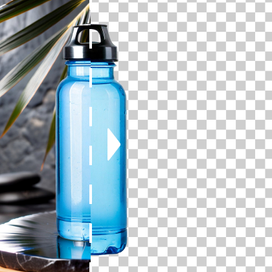
With our AI image color changer, you can swap fabric colors, packaging shades, or background tones while keeping the original texture, shadows, and details.


Turn one packshot into channel-ready creative
Different channels demand different looks: use AI Edit to recolor backgrounds or specific objects so the same image fits every placement.


Ship more variations (and test what converts)
Generate consistent, on-brand recolors for PDP images, catalogs, and ad sets. A/B test different palettes and backgrounds without rebuilding the whole creative.


Need AI photo editing at scale?
Handle high-volume image editing without adding production bottlenecks. Automate the workflow through our API, or let our team build and run a setup around your needs.
How to recolor an image
STEP 1: UPLOAD A PRODUCT SHOT
Select your photo
Upload a clear product photo. For best AI image recolor results, use sharp photos where the product is well-lit and in focus.


STEP 2: CHOOSE WHAT TO RECOLOR
Give recoloring instructions
Go to AI Edit and tell the tool whether you want to recolor the object, the background, or a specific part (e.g., "only the strap," "only the lid," "only the sleeves").


STEP 3: GENERATE RESULTS
Get clean recolors
Generate a few variations and pick the most accurate result. To improve precision, include constraints like "keep logo unchanged."


Tools
Your all-in-one AI photo studio
Simplify your product photography with tools that handle everything. Combine into simple and fast workflows to get the desired results in seconds.
Claid AI Studio




10+ more tools
are waiting in Claid Studio.
AI image recolor for product photos
If you're managing a catalog, color changes shouldn't mean re-editing everything from scratch. AI Edit helps you ship more variants, faster: create new colorways for launches, match brand palettes across campaigns, and keep your product looking consistent SKU to SKU.


