Tech
Add hyper-realistic skin texture with AI


If your AI images still have that “plastic” look, there’s a way to fix it.
Real photos show micro-texture (pores, fine lines) and tiny imperfections (slight redness, uneven pigmentation). You can replicate all that with AI. You can fix AI skin texture on existing photos with Claid’s AI Edit, or generate it correctly from the start in our AI Photoshoot.
How to fix skin on existing AI images
Our AI Edit can work like an AI skin texture enhancement tool: you prompt the correction and let the model rebuild believable detail while keeping the image usable. Make sure to select 2K or 4K outputs.
The prompt pattern
To add skin texture to AI images, use short, specific instructions:
- “Add visible pores and fine micro-texture, keep natural fine lines, keep the same face and lighting, no smoothing, no beauty filter, no AI glow.”
- “Restore realistic pores, subtle uneven pigmentation, slight natural redness, add subtle sensor grain, unretouched look.”
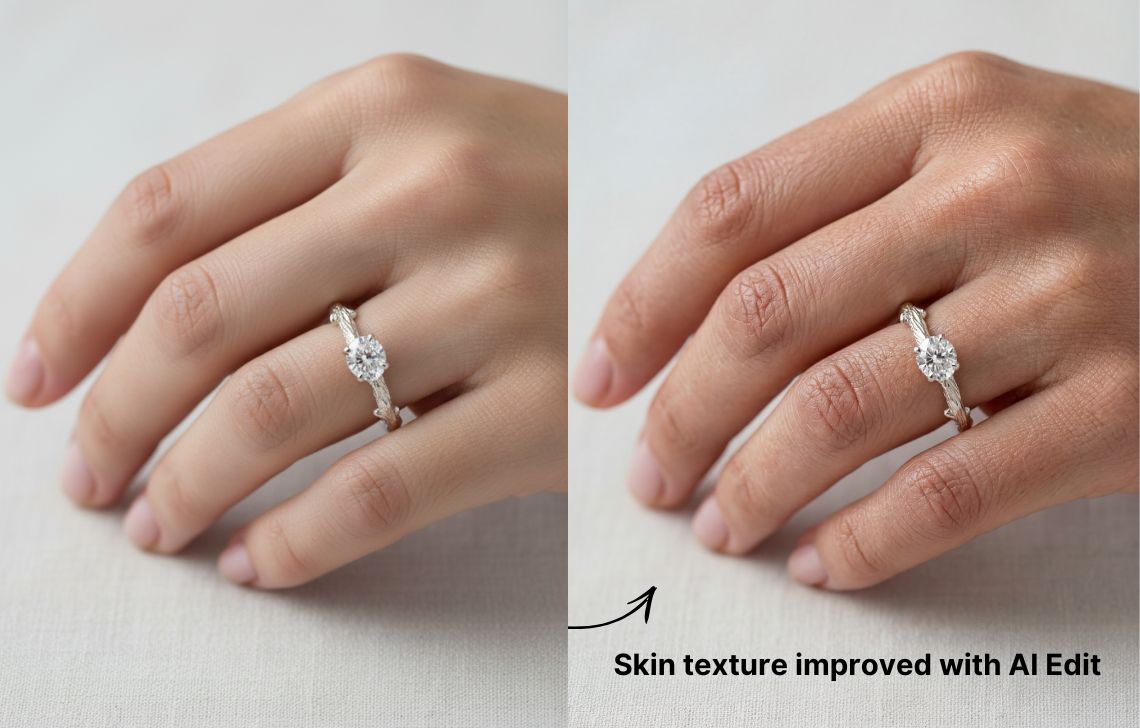
How to prompt AI generation with realistic skin
If you’re generating lifestyle or campaign visuals from scratch, use our AI Photoshoot, choose 2K or 4K output, and prompt skin realism explicitly.
The prompt pattern
1. Universal “hyper-real skin” template
“Ultra-realistic, photorealistic close-up portrait, unretouched. Skin shows visible pores and fine micro-texture, with subtle natural imperfections [mention what you want to add specifically: slight redness, uneven pigmentation, a few organic freckles].” Describe the lighting and camera direction: for instance, soft diffused window light, realistic shadows; shot on an 85mm lens, shallow depth of field (f/1.8), subtle sensor grain. Add negatives: no AI glow, no plastic skin, no smoothing, no beauty filters, no perfect symmetry.
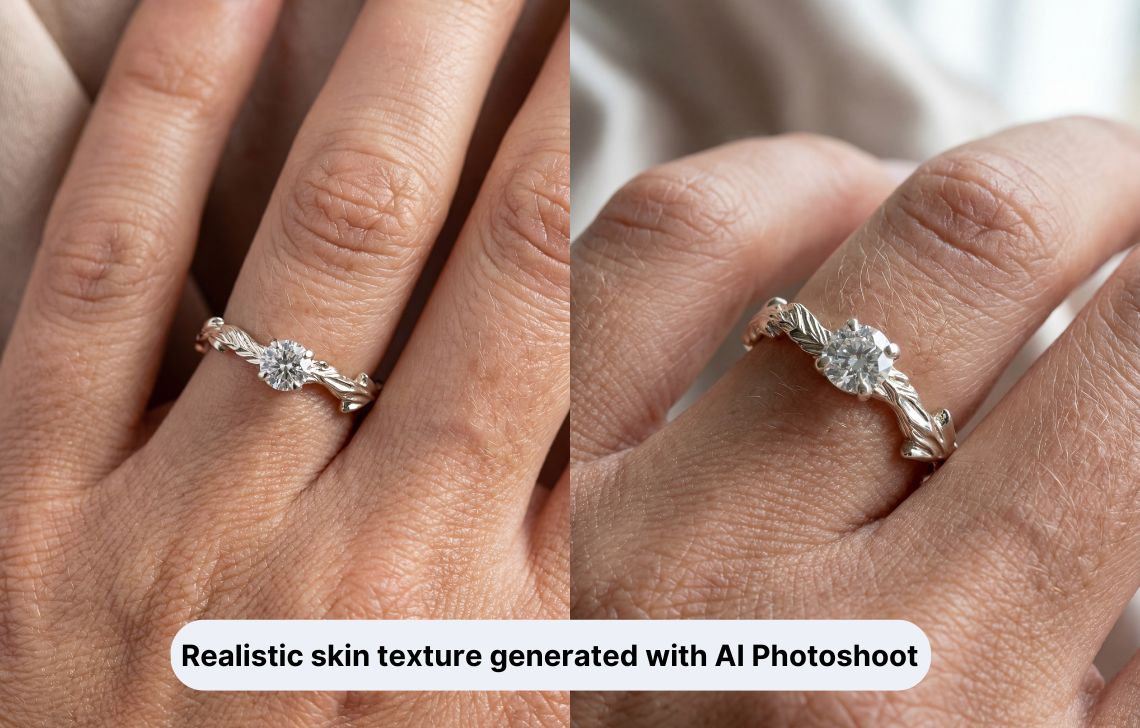
2. “Product on skin” (jewelry, skincare)
“Editorial-style ultra-realistic macro photograph of [your product] on [body part]. The surrounding skin has a hyper-detailed texture with visible pores and fine lines to contrast the product finish.”
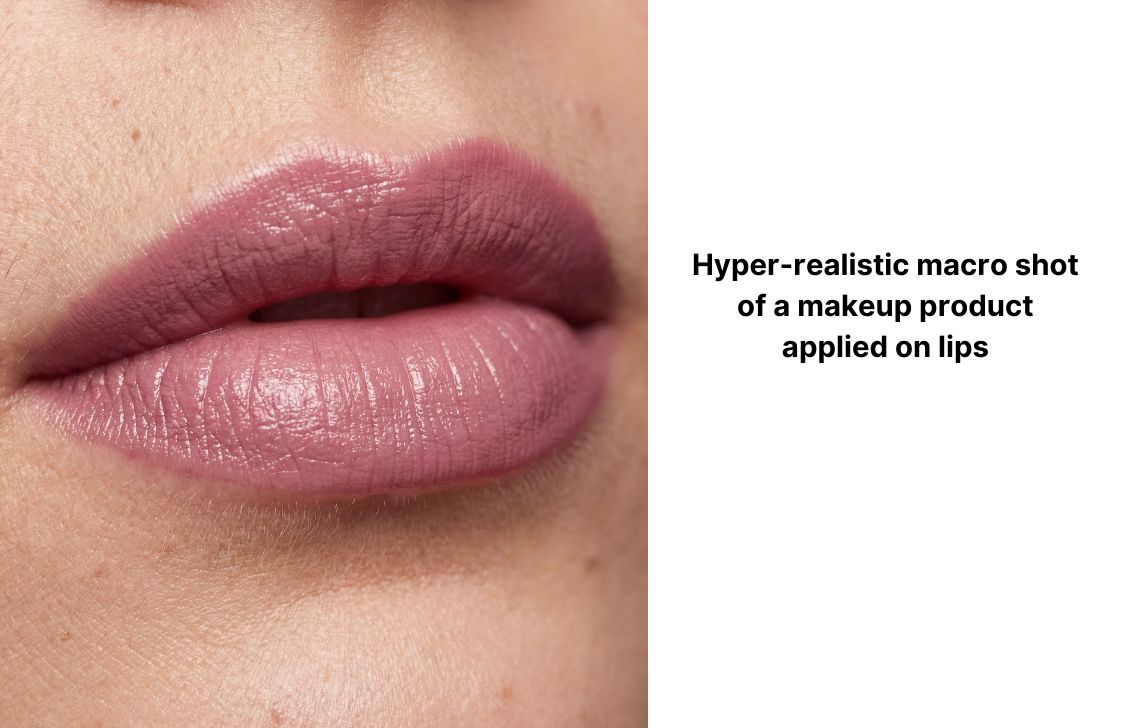
3. The “realistic selfie” prompt
“Ultra-realistic smartphone mirror selfie indoors near a large window in daytime. Focus on extreme skin realism: visible pores, fine micro-texture, non-repeating organic acne marks, natural subtle oil sheen on high points. Soft natural daylight, accurate white balance, subtle sensor grain, slight edge softness. Negatives: no AI glow, no plastic-looking skin, no smoothing, no skincare-ad aesthetic, no studio lighting.”
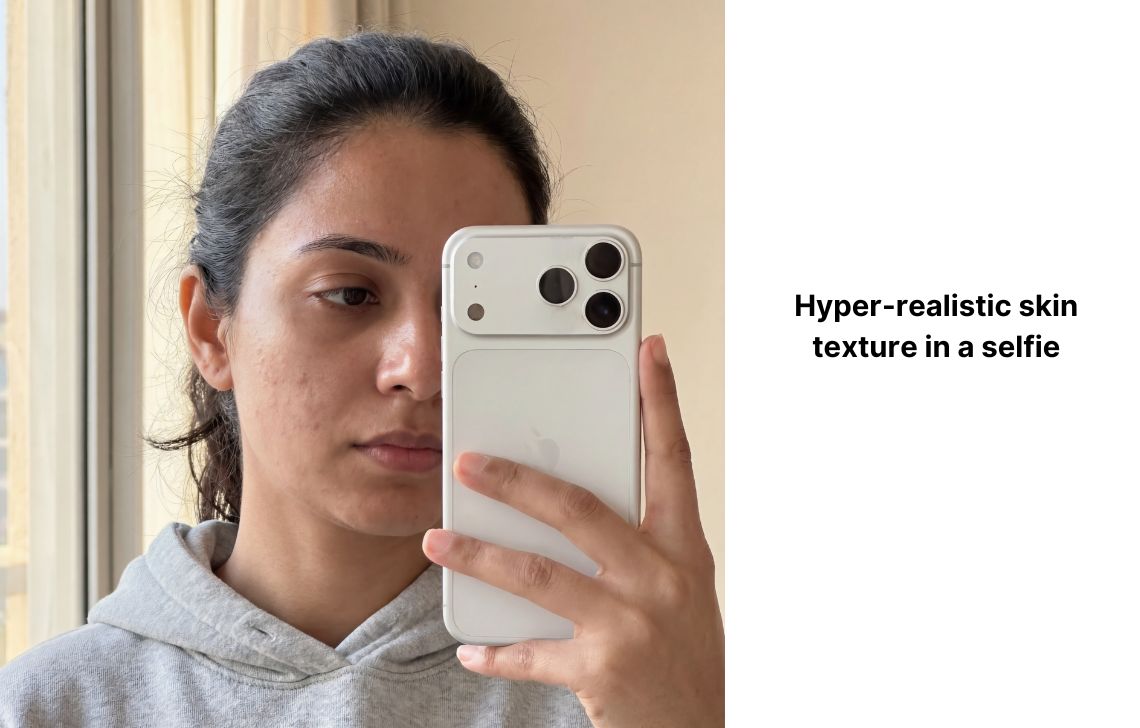
Try 4K realistic skin texture with AI
If your AI portraits still look a bit “too clean,” Claid makes it easy to get them back to real-camera realism.
Use AI Photoshoot to generate hyper-realistic people with natural pores and micro-texture, or run AI Edit as your AI skin texture enhancement tool to fix waxy skin on existing images in seconds.
Generate photos with realistic skin
FAQ
Why do AI faces and hands look plastic?
AI skin texture is the micro-detail that makes skin look real in photos: pores, fine lines, subtle redness, and natural variation. Many generators over-smooth faces, which removes that micro-detail and creates the waxy look. In Claid, you can fix AI skin texture either with 2K/4K generation in AI Photoshoot (prompting texture from the start) or by using AI Edit to restore realistic detail on an existing image.
How do I add realistic skin texture to an AI image?
To add skin texture to an AI image, use AI Edit and prompt surface detail explicitly: “Add visible pores and fine micro-texture, keep natural fine lines, no smoothing, no AI glow.” Note that this level of detail only works in 2K and 4K generation.
Can I use Claid as a free AI skin texture enhancement tool?
Yes, you can try out realistic skin enhancement in Claid for free (you have 50 credits to explore the tools).
Need this at scale?
Process thousands of images via API, or let our team handle it for you.


Claid.ai
February 6, 2026